TaxCycle

Auto-Update Files

Configure TaxCycle to automatically update from a location on your office network or on the web (URL).

Download the latest auto-update file from the list, then follow the instructions (below) to set the update location.

This release enables the T1 Condensed barcode and AFR for 2025 T1 returns.

Release Notes

Download Auto-Update Files

This TaxCycle release updates the T1/TP1 forms and schedules to the latest versions available from the CRA and Revenu Québec. It also extends the supporting tax year for Québec’s CO-17 returns to May 31, 2026.

Release Notes

Download Auto-Update Files

This TaxCycle release is ready for filing 2025 slips when systems open on January 12, 2026.

Release Notes

Download Auto-Update Files

Set Up Each Computer (One-Time Configuration)

  1. Go to Options. (To open Options from the Start screen, click Options on the left side. If you have a file open, go to the File menu, then click Options.)
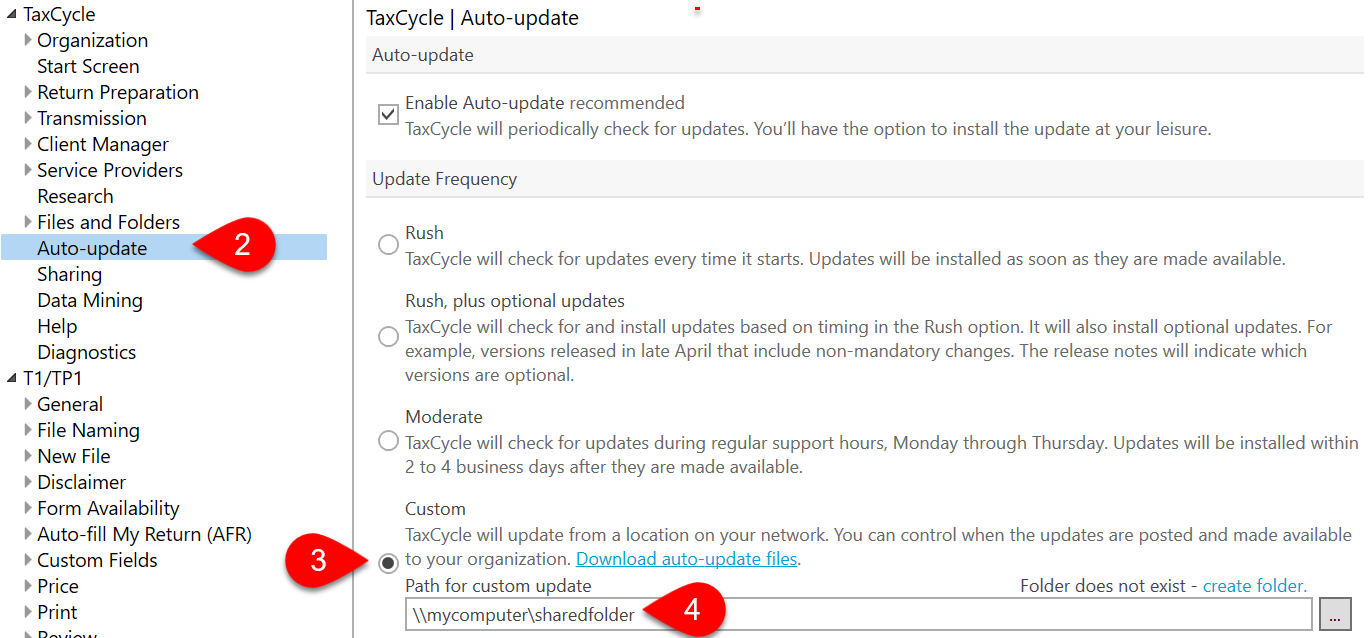
  2. On the left side of the dialog box, click Auto-update.
  3. On the right side of the dialog box, select Custom.
  4. Browse to set the Path for custom update. This can be a location on your network (remember to enter the path as a UNC path), or a website (URL). For example \\minicomputer\sharedfolder or https://get.taxcycle.com/TaxCycleUpdate.
  5. Click OK to save the changes.

Screen Capture: TaxCycle Auto-update options

Publish the Auto-Update File (After Each Software Release)

  1. Download the auto-update file from the list above.
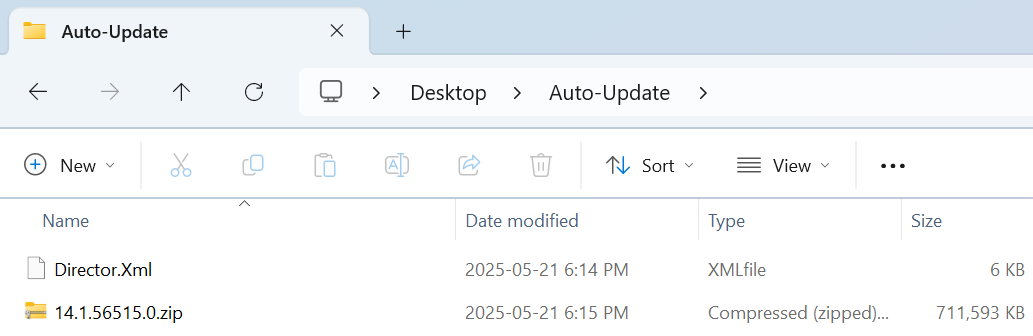
  2. Unzip the file to the shared folder on your network. This puts the two update files in the folder: Director.Xml and 14.1.56515.0.zip (or an equivalent version number). These two files must be in the folder for the update to work.
  3. When a new version is released, replace the Director.Xml file and add the new version number zip file. The old zip file from the previous update is not required and can be safely deleted.

Screen Capture: Auto-Update folder on your PC