TaxCycle
Updated: 2026-08-27

Microsoft 365® (Outlook) Integration

Connect to Microsoft® to send emails to your clients directly from TaxCycle. 

You can connect to Microsoft 365® (Outlook) in the Print Configuration dialog box when emailing a form, or in TaxCycle Options:

  1. To open options, go to the File menu, then Options. Or, if you are on the Start screen, click Options in the blue bar on the left.

  2. On the left, expand the Service Providers section and click on the Microsoft 365® (Outlook) page.

  3. Click Connect.

  4. A new window will open for you to log into your Outlook account.

  5. Once you see the message confirming that the connection is successful, close the browser window.

  6. Back in options, you will see a message confirming you are connected. You may now close the Options dialog box. The connection will remain active.

Email a Form

Sending batch emails via Gmail or Microsoft 365 (Outlook) from the Client Manager is not supported at this time.

  1. Open a form in TaxCycle.

  2. Press Ctrl+Shift+P, click Print/PDF Form in the Tools menu, or right-click on the form and select Print/PDF Form. (If configuring a print set, click the edit link for the print set in the Print/PDF sidebar.)

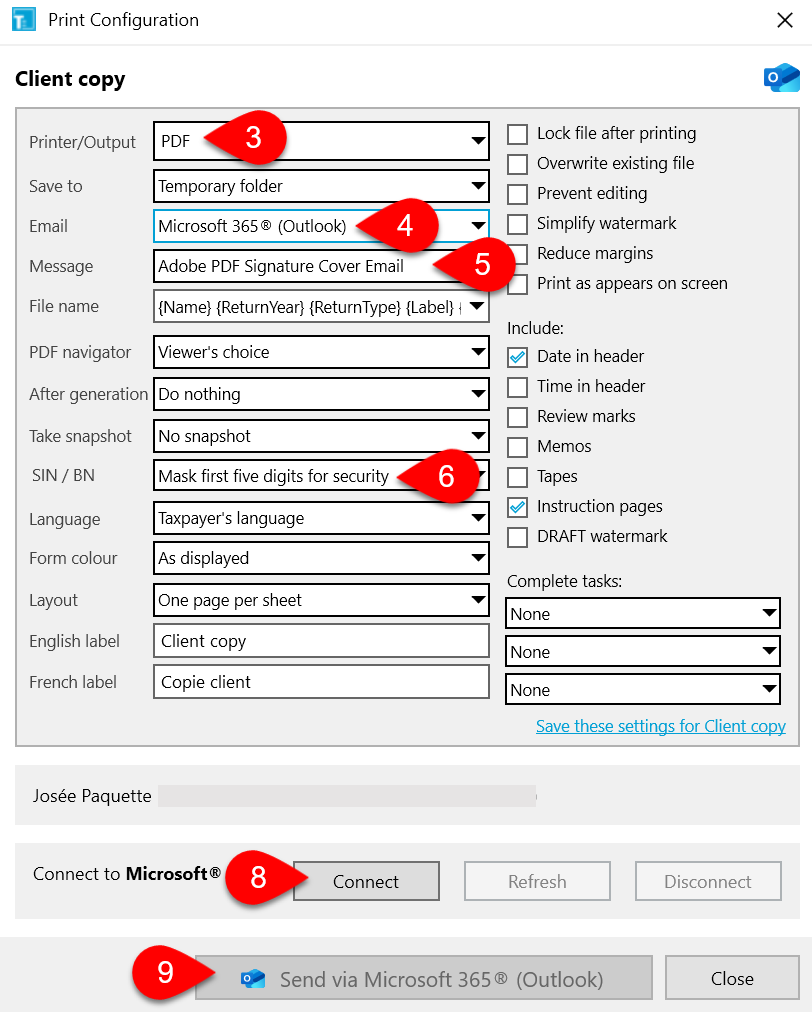
  3. From the Printer/Output menu, select PDF.

  4. From the Email menu, select Microsoft 365® (Outlook).

  5. Select a template from the Message menu. TaxCycle uses the subject line from the template as the Email notification subject line when sending the email to the client. The text in the template body is included as part of the Email notification body.

  6. From the SIN/BN menu, select Mask first five digits for security to obscure social insurance numbers and business numbers from the forms. (We strongly recommend using this option when sending documents for signatures.)

  7. Set any other PDF options as required. See Printer and PDF Output Options for details.

  8. The current status of your connection to Microsoft® shows at the bottom of the dialog box. Click Connect to open your web browser and sign in to Microsoft 365® (Outlook) with your Microsoft® account.

  9. Click Send via Microsoft 365® (Outlook) to send the email to your client.

  10. The Print Monitor at the bottom of the sidebar shows you the status as TaxCycle sends the email.

Screen Capture: Connect to Microsoft

Set Default Email Provider

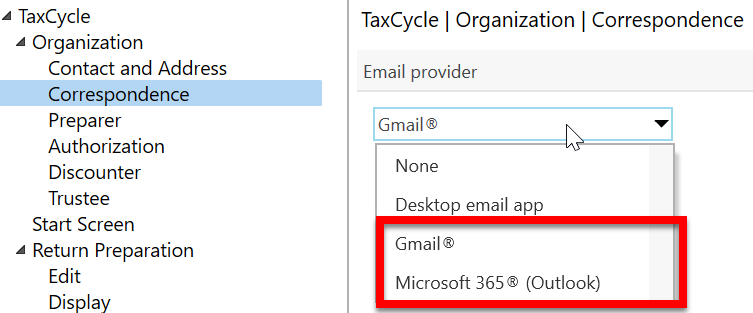
You can set Outlook as your default email provider from the dropdown list in Correspondence Options.
Screen Capture: Email provider