Tables
Insert a Table
To add a table to your template:
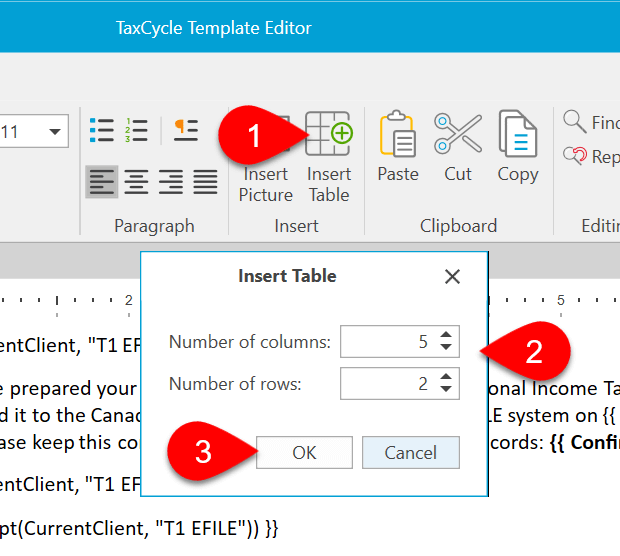
- Click the Insert Table button in the Template Editor.
- Enter the Number of columns and rows you need.
- Click OK.
Right-click Options
- Right-click on table cell, or select more than one cell and right-click to access functions to:
- Insert and delete cells, rows and columns.
- Merge or split cells.
- Adjust the alignment of content within a cell.
- Auto-fit cells to the content.
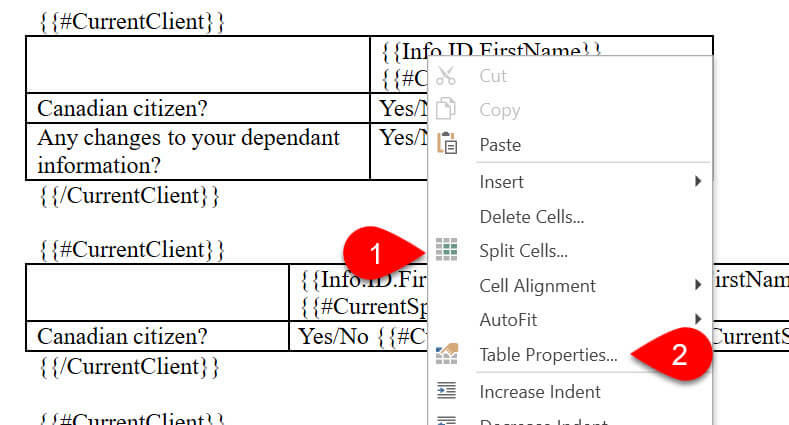
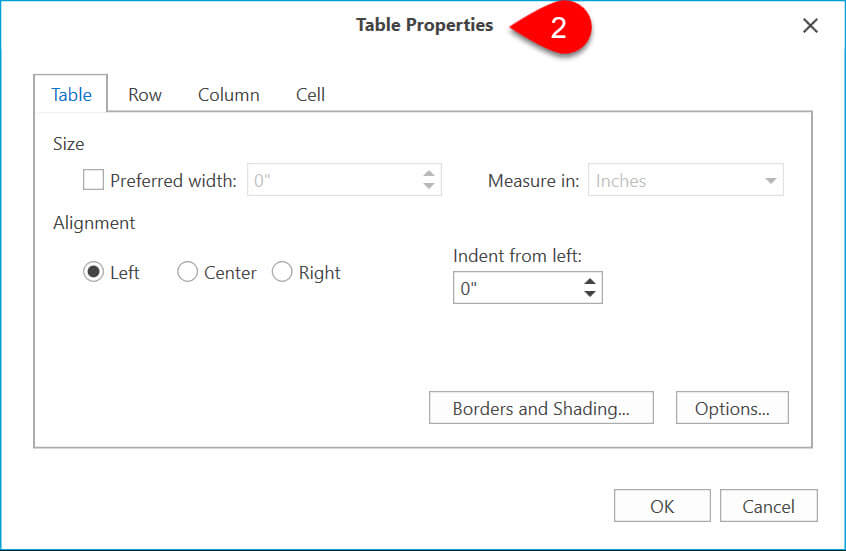
- Right-click and select Table Properties to open a dialog box where you can further adjust the following functions:
- Table borders, shading, padding, alignment and width.
- Row height, whether to allow a row to break across pages and whether to repeat the first row as a header when page breaks occur.
- Column width.
- Cell width, vertical alignment, margins, text wrap and fit text to the cell.
Use a Condition to Hide a Table Row
If you wish to hide a row in a table based on a conditional statement, the placement of those statements is very important. There is no way to place the condition outside of the table. Instead, you have to position the statements to skip specific column and row borders.
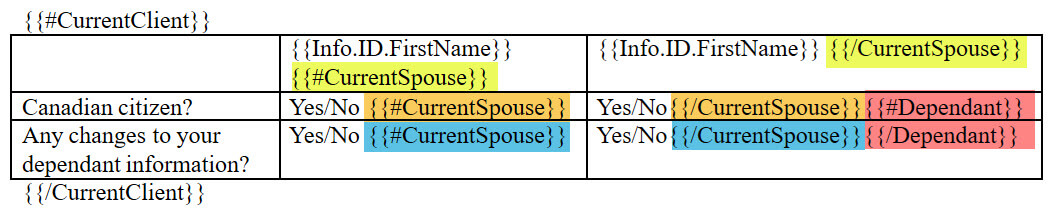
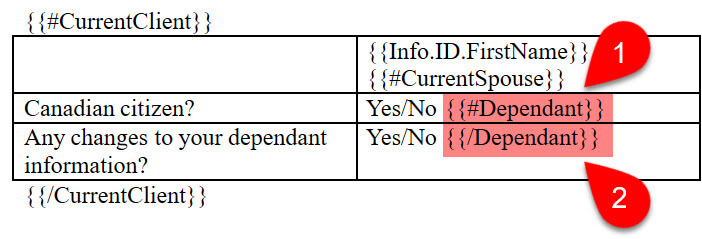
The example below hides the last row of the table based on whether the file includes any entries on the Dependant worksheet:
- Place the opening tag {{# Dependant }} within the last cell at the right end of the row before the one you want to hide if there are no dependants in the file.
- Place the closing tag {{/ Dependant }} within the last cell at the right end of the row that you want to hide.
Use a Condition to Hide a Table Column
If you wish to hide a column in a table based on a conditional statement, the placement of those statements is very important. There is no way to place the condition outside of the table. Instead, you have to position the statements to skip specific column and row borders.
The example below hides the last row of the table based on whether the file includes spouse's return:
- Place the opening tag {{# CurrentSpouse }} within the cell to the left of the column before the one you want to hide.
- Place the closing tag {{/ CurrentSpouse }} within the last cell at the right end of the row that you want to hide.
- Repeat this on each row of the table.

Combine Hiding a Row and a Column
You can combine hiding a row and a column using the principles above. The important thing is to be careful with the order of the opening and closing tags. Specifically, do not place an opening or closing tag on its own within another condition.
For example it will not work properly if the order of the tags is:
{{# CurrentSpouse }} {{# Dependant }} {{/ CurrentSpouse }} {{/ Dependant }}