Organization Settings
Update Organization Settings to keep your organization’s details and correspondence settings current in TaxCycle Go.
Who Can Edit Organization Settings?
The organization owner and staff members with editing permissions can update organization details. See Roles and Permissions for more information.
Update Your Organization Details
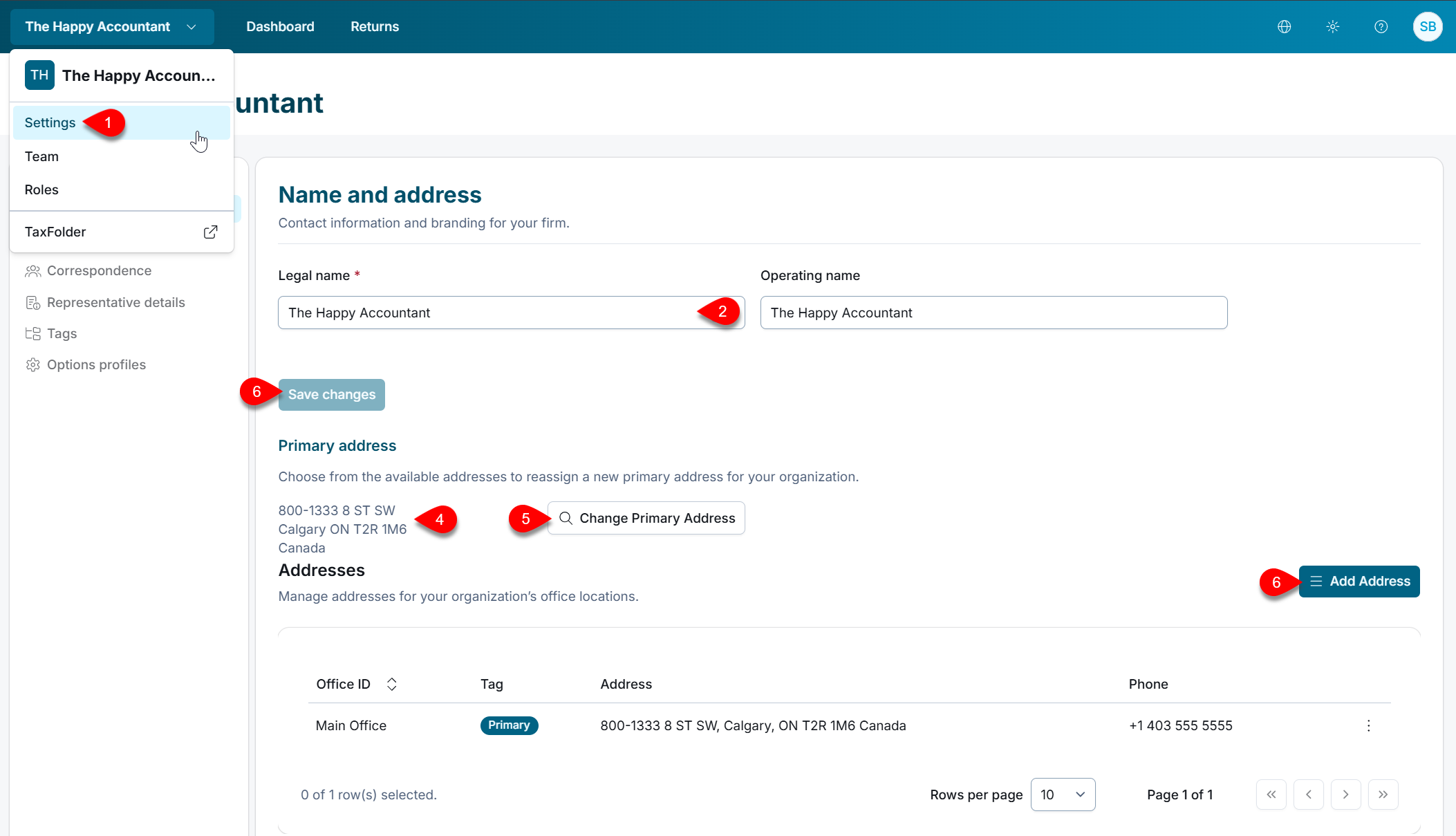
Sign in to TaxCycle Go and go to Settings.
On the Name and address page, review the Legal name and Operating name.
Update any details that have changed, then click Save changes.
Review the primary address.
If you have multiple addresses on file, click Change Primary Address and select the one you want to use as the primary address.
To add a new address, click Add Address.
Important! Changes to your organization’s address in TaxCycle Go do not automatically update your billing account. If TaxCycle Go asks whether to update the address in billing, choose whether to apply the change there too.
Set the Primary Contact
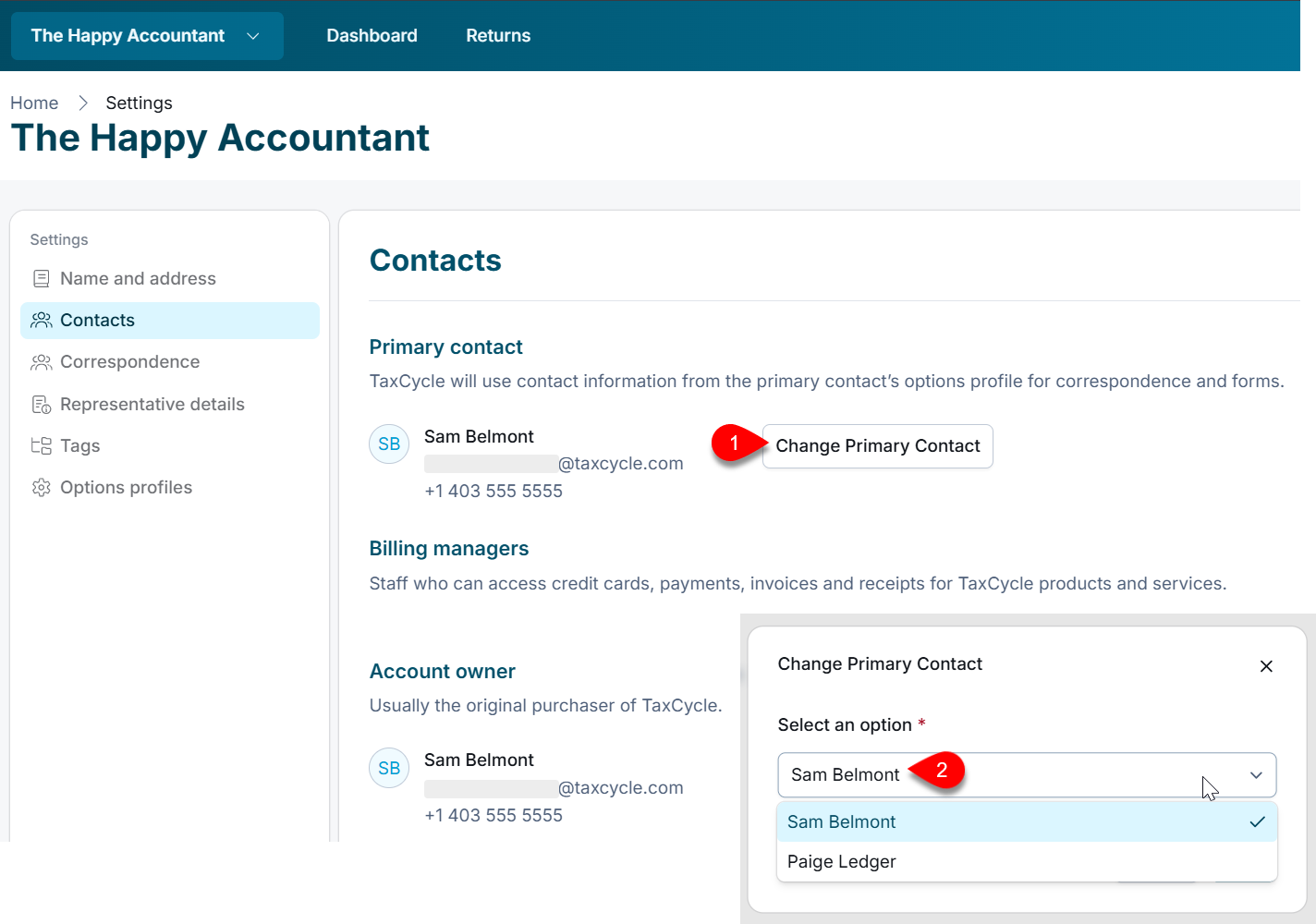
On the Contacts page, you can set the Primary contact and view information about the account owner. TaxCycle will use the contact information from the primary contact’s options profile for correspondence and forms.
To change the primary contact, click Change Primary Contact.
Select an option from the list of staff.
Set Up Client Correspondence
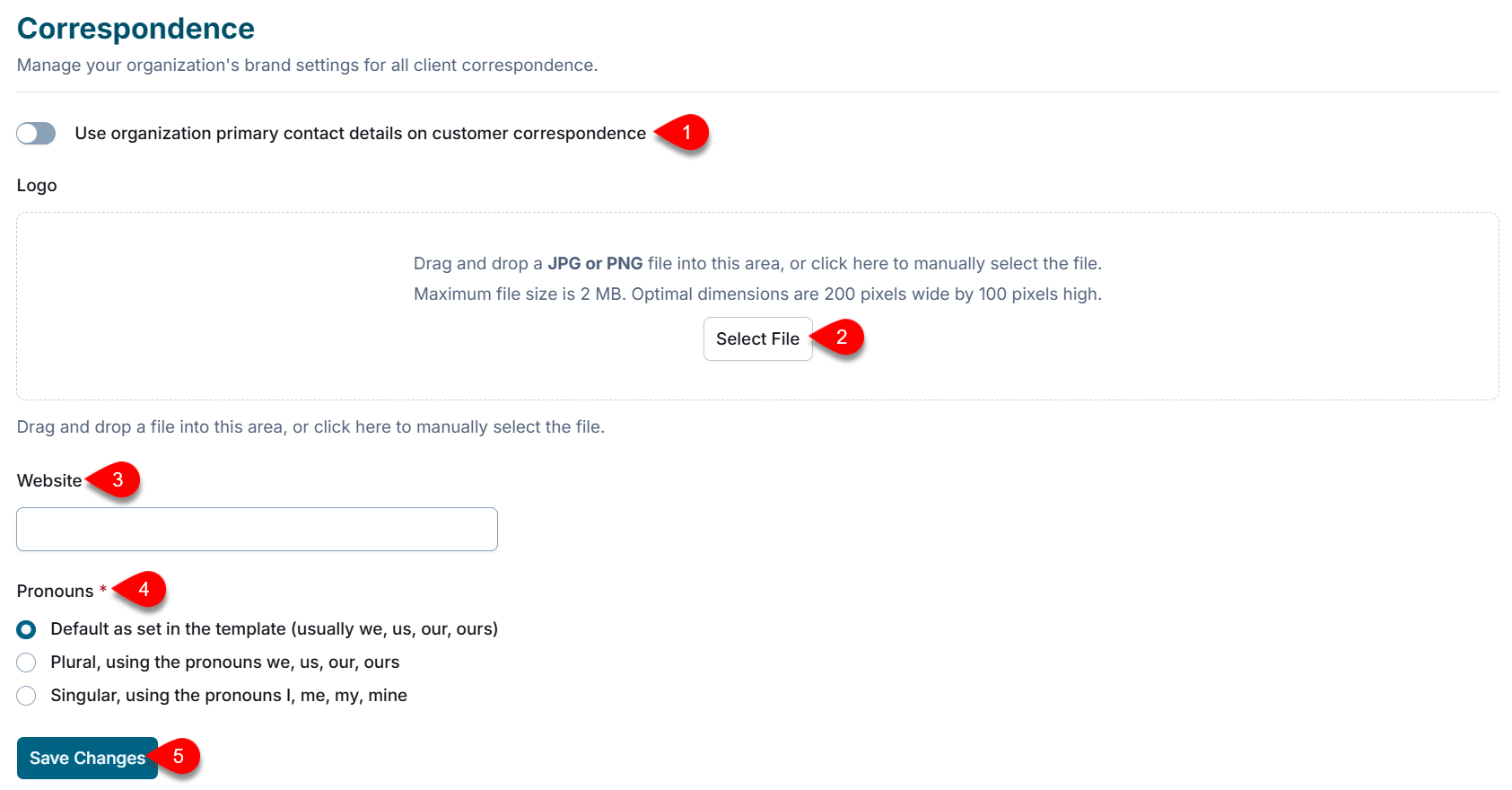
On the Correspondence page, manage your organization’s logo, global signature, and singular or plural wording used in client correspondence templates. Fields with an * (asterisk) are required.
If you want client correspondence to use the organization’s primary contact details, turn on this setting. If you are a staff member, this setting may be turned on by default.
Click Select File to upload your organization logo. The maximum file size is 2 MB.
Enter your organization’s website.
Set the pronouns you want to use in correspondence templates.
Click Save Changes.
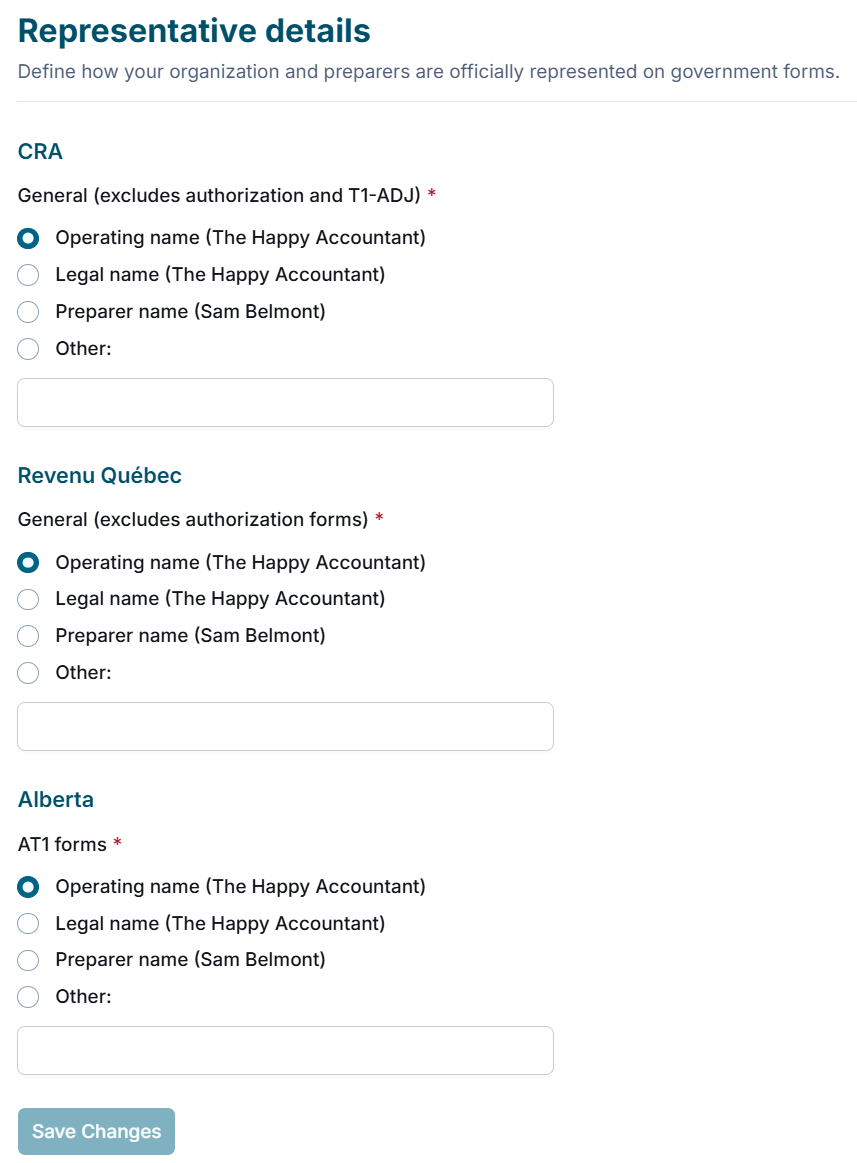
Update Representative Details
Define how your organization and preparers are officially represented on CRA, Revenu Québec, and AT1 forms.
Manage Tags
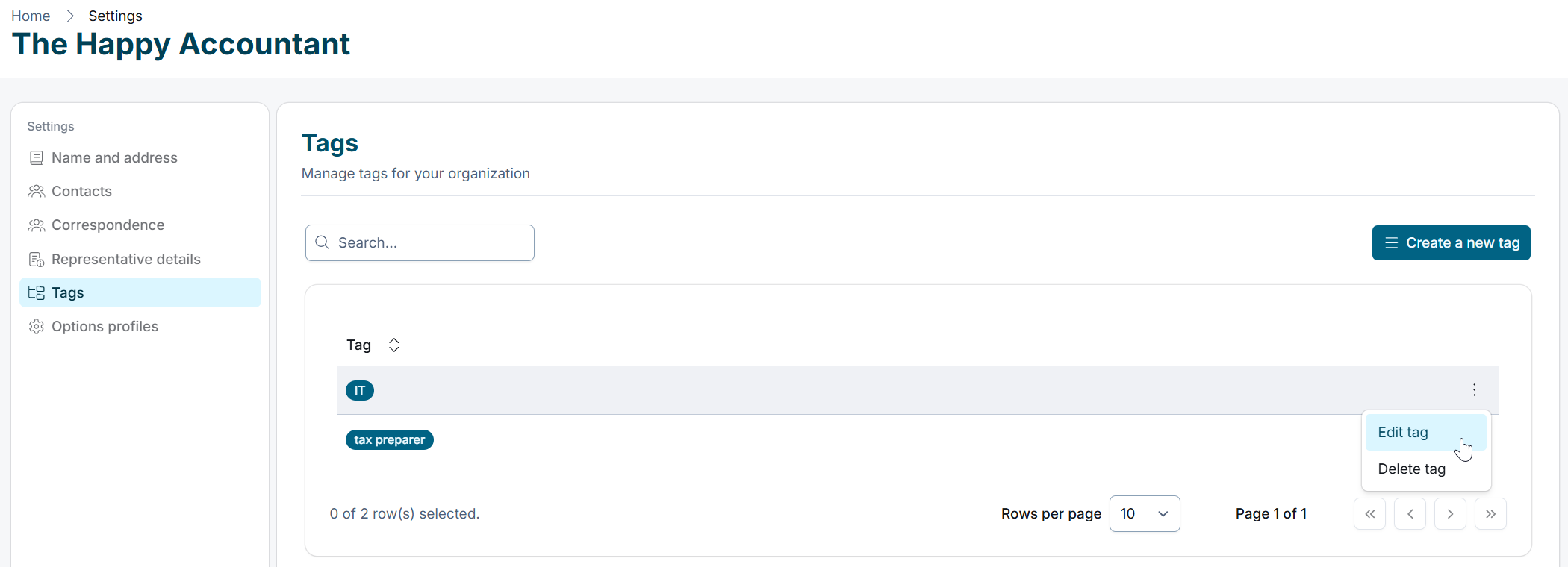
On the Tags page, manage the tags used for your organization.
Upload an Organization Options Profile
Upload a TaxCycle options profile .zip file to distribute shared settings across your organization. For instructions on creating the profile, read the Create an Organization Options Profile help topic.