Set up MFA on a New Device
Important! Make sure to set a
Recovery Email (that is not your TaxCycle account email address) to recover your multi-factor secured account in case you lose access to your multi-factor device.
Read this topic to learn how you can access your TaxCycle Account using multi-factor authentication (MFA) on your new device.
New Phone Number
If you are changing your phone number, make sure to update your TaxCycle Account with the new number before cancelling the existing phone number. You can do this by accessing your TaxCycle Account settings and changing the phone number on file, but you will need to disable multi-factor authentication first and then enable it again using the new phone number:
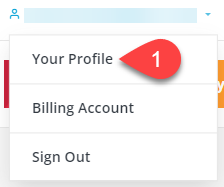
Sign in to your TaxCycle Account. You will be redirected to the Edit Profile page in your TaxCycle Account. (If you enter your account from the TaxCycle website, you may need to click Your Profile to get to this page.) You can also sign in from TaxFolder.com.
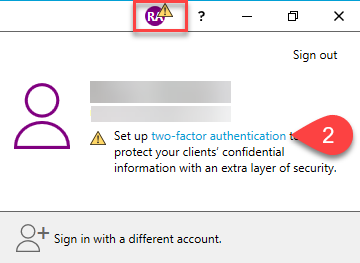
If you are already signed into TaxCycle or DoxCycle desktop software with your account, click on your initials in the title bar of TaxCycle. If you have not yet set up multi-factor authentication, you will see a message. Click the link in the message to open your TaxCycle Account in a browser (and sign in again if necessary). You will be redirected to the Advanced Security page.
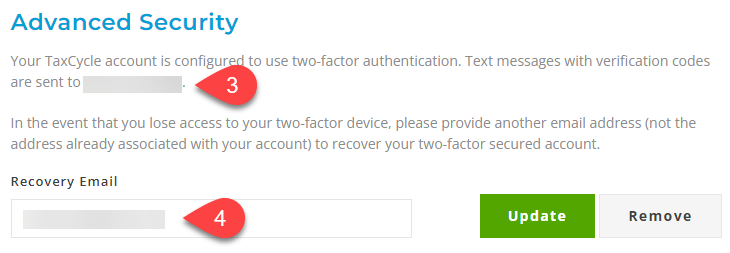
On the Advanced Security page, you can see your current MFA configuration method and the phone number where the verification codes are sent.
You can also update your recovery email address here.
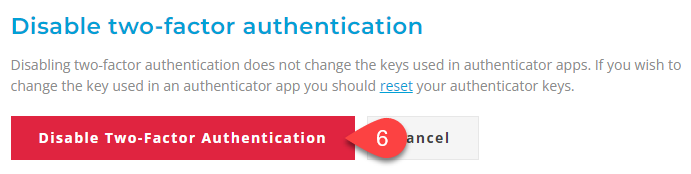
Click the Disable Two-Factor Authentication button.
Click this button again to confirm.
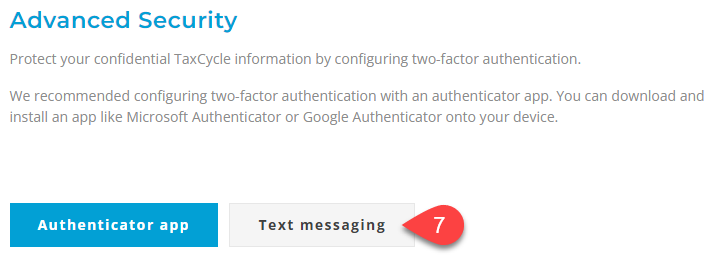
Return to the Advanced Security page and click on the Text Messaging button to set up 2FA again using your new phone number.
The preferred method to configure MFA is with an authenticator app since it is more secure than SMS verification. Certain authenticator apps, such as Google Authenticator or Microsoft Authenticator, also allow you to install them on your computer. This ensures you can still use 2FA without your phone.
Authenticator App
If you are using an authenticator app as your MFA method, you will need to transfer the data from the app to your new device.
Transferring your data depends on the app you are using. Generally, most authenticator apps automatically back up your recovery codes and data to the cloud and restore them once you sign in using the same account on your new device.
To learn how to transfer your MFA data manually:
For Google Authenticator, read the Transfer your Google Authenticator codes section on this page.
For Microsoft Authenticator, read the Back up and recover account credentials in the Authenticator app page.
Once you have transferred the data to your new device, temporarily disable MFA and re-enable it on your new device.
Reset Authenticator Keys
Disabling MFA does not change the keys used in your authenticator app. If you wish to change the key used in an authenticator app and generate a new set of recovery codes, you can reset the authenticator keys. It is important that you save the recovery codes somewhere safe in case you need to recover your account at a later date.
If you reset your authenticator keys, your authenticator app will not work until you reconfigure it. If you do not complete the configuration, you may lose access to your account.
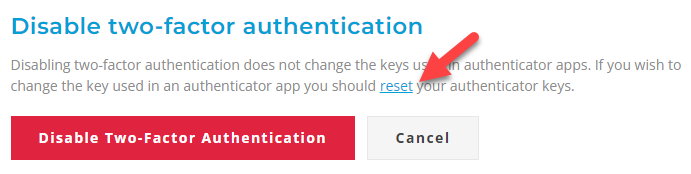
On the disable two-factor authentication confirmation screen, click the link to reset your authenticator keys:
Recover Your Account
If you are unable to configure MFA on your new device or access your two-factor secured account for any reason, please contact support for further assistance. We may be able to verify your identity and recover your account depending on the information you are able to provide.