TaxCycle
Updated: 2026-11-20

Ways to Send Email

You can send email from TaxCycle in three ways. The way you choose depends on the email account you use.

  1. Gmail. Connect your Google account once, and TaxCycle sends the email for you. You don’t need to open another program. See Gmail Integration.

  2. Microsoft 365 (Outlook). Connect your Microsoft account once, and TaxCycle sends the email for you. Your email must be hosted on Microsoft 365 (Exchange Online). If your organization requires administrator approval for new applications, see How to Connect Your Organization’s Microsoft Account to TaxCycle. See Microsoft 365 (Outlook) Integration.

  3. Your default desktop email program. TaxCycle opens the message in the email program already installed on your computer, such as Outlook. This is the default, and it needs no setup unless TaxCycle can’t detect your program. If that happens, see Desktop Email Clients.

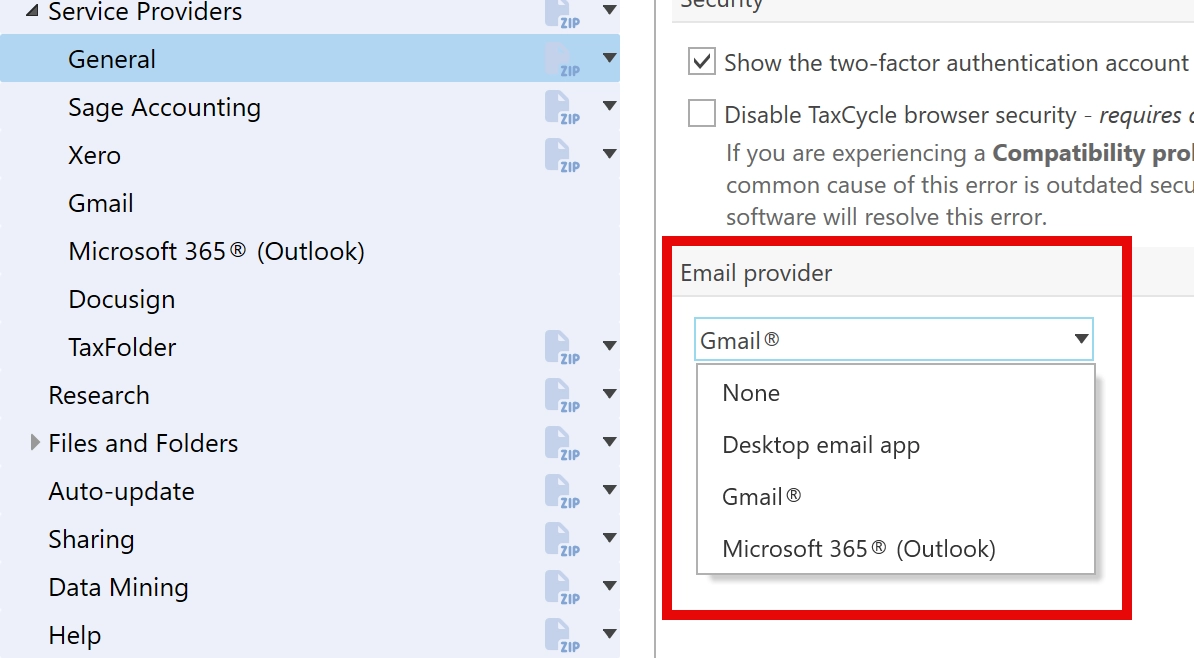
To choose the provider TaxCycle uses by default, go to Options, expand Service Providers and click General and select your preferred email provider.

Screen Capture: TaxCycle Options > Service Providers > General

Things to Know

  • You can email a template two ways: from the Prepare sidebar, or as a cover letter when you create a PDF in Print/PDF. See Email Templates.

  • You can edit an email in TaxCycle before you send it. See Email Templates.

  • Batch emailing through Gmail or Microsoft 365 (Outlook) from Client Manager isn’t supported.

  • Email isn’t a secure way to send confidential information. Use TaxFolder to share confidential information with clients.