Edit an Email Before Sending
You can review and edit an email in TaxCycle before you send it. Your edits apply only to the email you're sending. They don't save back to the template or the return.
Warning! Email is not a secure form of communication. Use TaxFolder to share confidential information with clients.
Ways to Send Email
TaxCycle can send email through your default desktop email program, Gmail® or Microsoft® 365 (Outlook). With your default desktop email program, TaxCycle opens the message in the email program installed on your computer. With Gmail® or Microsoft® 365 (Outlook), you connect your account once, and TaxCycle sends the email for you.
Batch emailing through Gmail® or Microsoft 365® (Outlook) from Client Manager isn't supported.
You can email a template two ways: from the Prepare sidebar, or as a cover letter when you create PDFs in Print/PDF.
What You Can Edit
In the email dialog, you can change:
Recipient(s). Check or clear the people you want to email.
Subject. Change the subject line.
Body. Change the wording of the message.
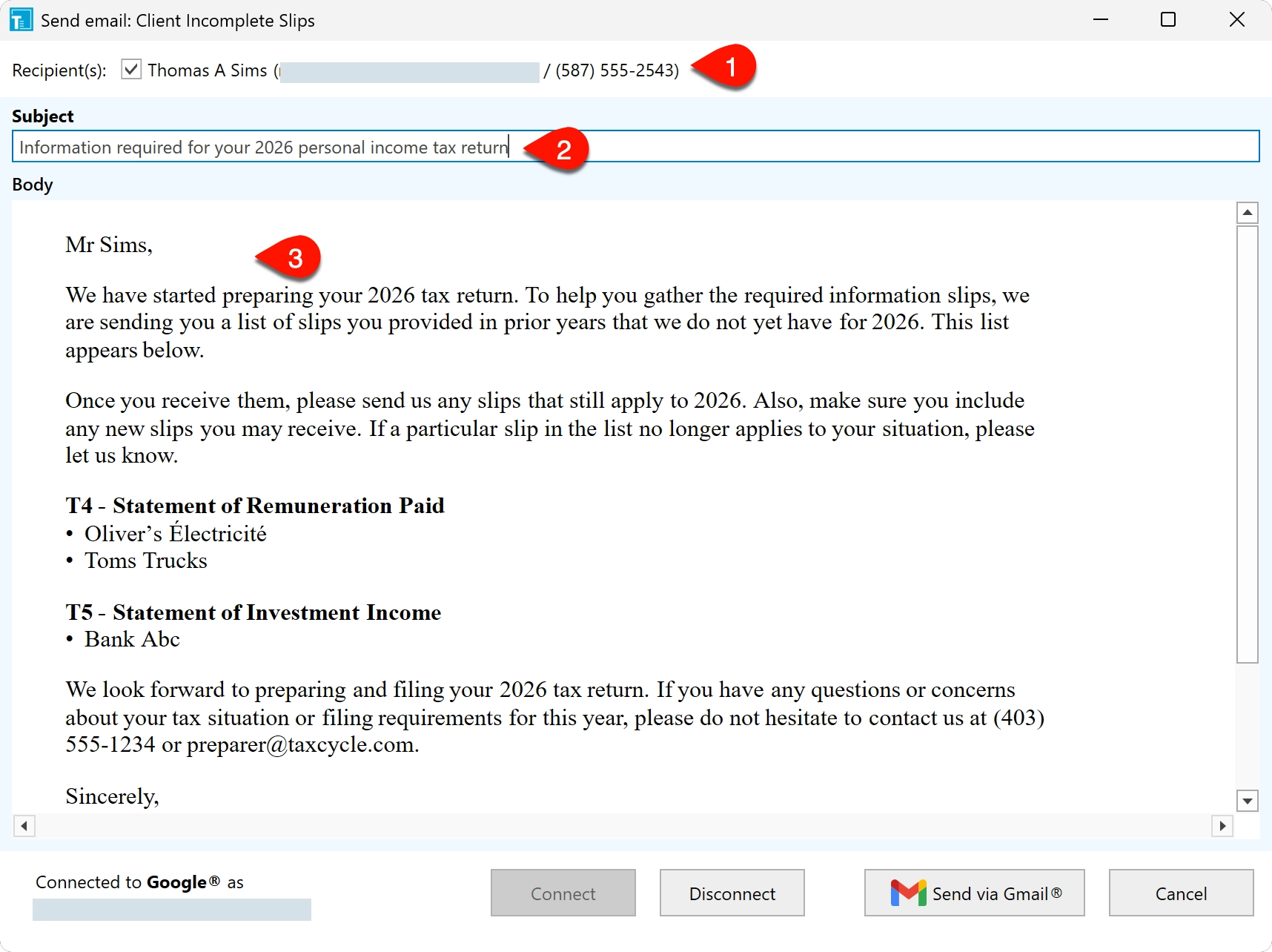
Edits apply only to the email you're sending. They don't save back to the template or the return.
Update Client Details
TaxCycle takes the recipients' names and email addresses from the Info worksheet. To change them, update the Info worksheet, then create the email again.
Format the Body
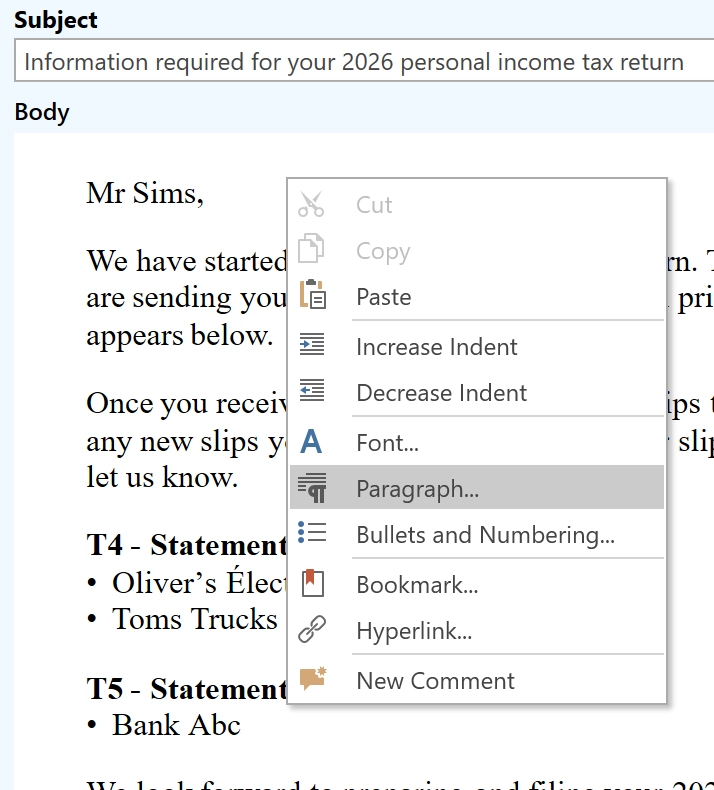
To change the formatting of the email, right-click in the Body to access the text formatting and paragraph properties. Formatting changes apply only to the email you're sending. See Text Formatting.
Change the Template
To change the formatting or wording of every email you create from a template, edit the template in the Template Editor. To create your own email templates, or to clone a built-in template, see Email Templates.