- Tax Modules
- TaxCycle T1
- Québec TP1
- TaxCycle T2
- TaxCycle T3
- TaxCycle T4/T4A
- TaxCycle T5
- TaxCycle T5013
- TaxCycle T5018
- TaxCycle T2202
- TaxCycle NR4
- TaxCycle RL
- TaxCycle T3010
- TaxCycle Forms
- Compare tax suites
- Productivity Tools
- TaxFolder
- DoxCycle
- Integrations
- Xero
- Caseware
- Docusign
- Gmail
- Microsoft 365 (Outlook)
- Remitian
- See all integrations
- Core Features
- Auto-fill My Return
- EFILE
- Family Returns
- Prior-Year Returns
- Review Tools
- Smart Copy/Paste
- SlipSync
- Client Manager
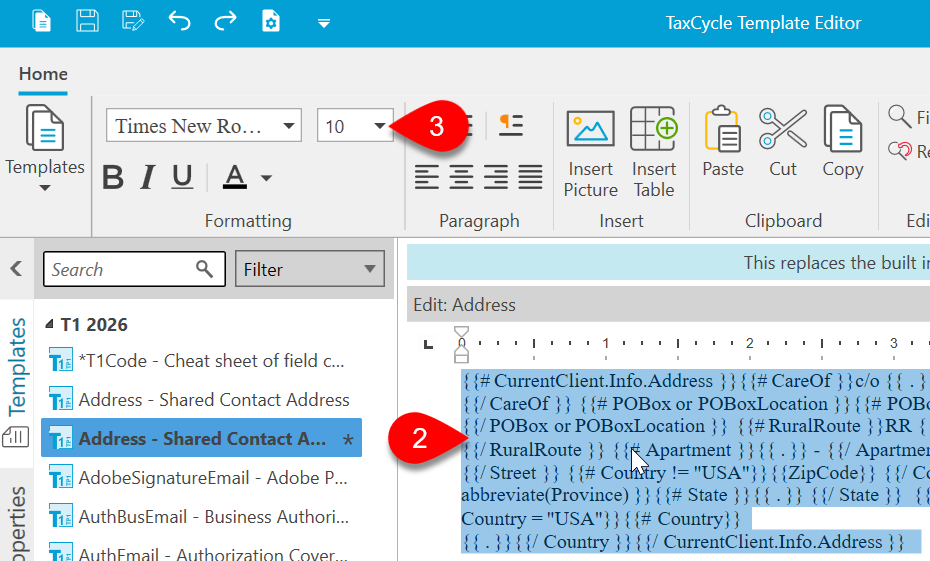
- Template Editor
- Data Mining
- Time-saving toolkit
- Why Choose TaxCycle
- Unparalleled Support
- Integrated Tax Suite
- Switching is Easy
- File Conversions
- Easy Onboarding
- Flexible Payment Plans
- Satisfaction Guarantee
- How to Switch
- Download a Trial
- Watch an Intro Webinar
- Book a demo
- Customer Stories
- Customer stories
- Referral Program
- Get Support
- Contact Support
- Send Files to Support
- Remote Help
- Find Answers
- Known Issues
- Help Centre
- Visit ProTaxCommunity.com
- Install and Update
- Download
- Release Notes
- Auto-Update Files
- System Requirements
- News Feed
- Go to News Feed
- Categories
- Known Issues
- Release Notes
- EFILE
- CRA
- TaxFolder