Updated: 2026-01-14
Template outlines allow you to create an outline that allows the preparer to show or hide segments of the letter for a particular client. When you add or remove a segment, the body of the letter continues to update as you make data or calculation changes to the return.
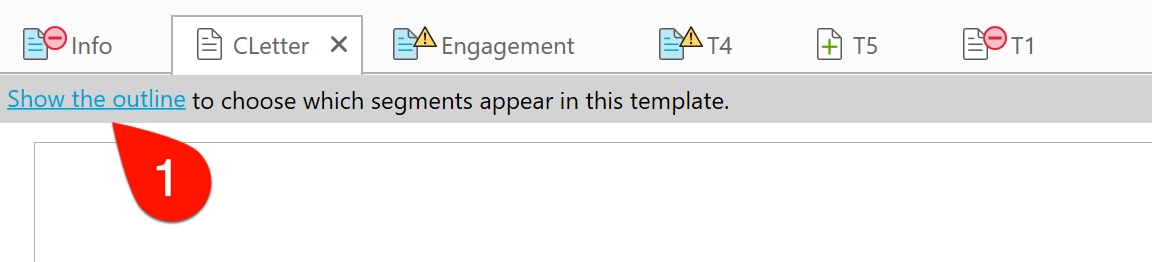
If a template contains a template outline, click the link to show the outline. Once you see the outline, you can check boxes to add or remove content from the letter.
By default, an outline only contains the segments applicable to the data in the open return; you will see different segments for each taxpayer (for example, see the default client letter). However, it is possible to create templates that display additional paragraphs that do not display by default but do appear as optional in the outline (for example, see the default pre-season letters).
You can add outlines to your custom templates. Review the examples below to learn about the code.
Using an Outline
- Templates that support an outline display a message at the top of the template. Click Show the outline to open the panel containing the outline above the template.
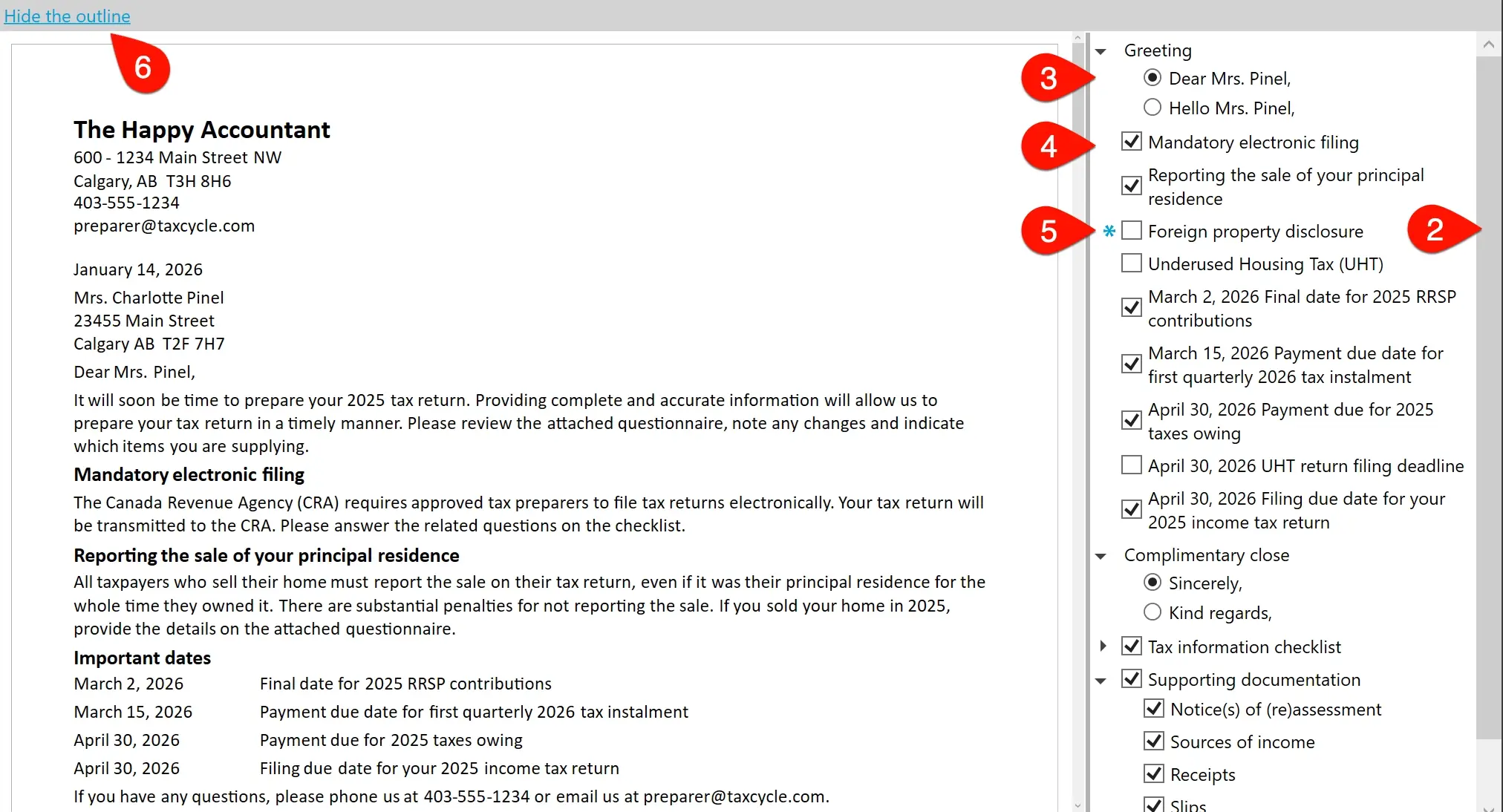
- The panel shows a list of segments that are part of the template. Scroll down within the panel to see all the possible segments.
- Some sections expand and allow you to choose one option from a group of radio buttons or check boxes.
- Check or clear a box to include or exclude the text. Boxes are checked or unchecked by default based on the code in the template and the data in the tax return.
- If selecting or clearing a check box or radio button overrides the calculated default for a segment, a blue asterisk appears. Click it to revert to the default selection.
- Click Hide the outline to collapse the panel above the template.
Example 1: Check boxes
{{# CurrentClient }}
    {{# IsT1EfileEligible :: EFILE ?? Mandatory electronic filing }}
        Mandatory electronic filing
        The Canada Revenue Agency (CRA) requires approved tax preparers to file
        tax returns electronically. Your tax return will be transmitted to the CRA.
        Please answer the related questions on the checklist.
    {{/ IsT1EfileEligible :: EFILE ?? Mandatory electronic filing }}
    {{# true :: PrincipalResidence ?? Reporting the sale of your principal residence }}
        Reporting the sale of your principal residence
        All taxpayers who sell their home must report the sale on their tax return,
        even if it was their principal residence for the whole time they owned it.
        There are substantial penalties for not reporting the sale. If you sold
        your home in {{ Constants.CurrentTaxationYear }}, provide the details on
        the attached questionnaire.
    {{/ true :: Principal Residence ?? Reporting the sale of your principal residence }}
    {{# false !! T1135 ?? Foreign property disclosure }}
        Foreign property disclosure
        Canadian resident individuals who held property outside Canada with a
        total cost of more than 100,000 CAD at any time in the tax year must
        report it to the CRA. There are substantial penalties for non-compliance.
        Please complete the attached questionnaire.
    {{/ false :: T1135 ?? Foreign property disclosure }}
{{/ CurrentClient }}

| Element |
Description |
:: EFILE
:: PrincipalResidence |
Add :: (double colons) to a condition to enable a template outline. Insert a word after the :: (double colons) to act as the identifier for the check box. This is required and must be different for each check box. (The identifier can be in English or French, but it cannot contain spaces.) |
true
false |
The text before the :: (double colons) is often a template condition (for example, IsT1EfileEligible), which is evaluated to determine whether the paragraph will show. The box is checked by default if the data in the return meets the condition.
If no suitable condition applies, enter true to check the box by default or false to leave the box unchecked by default. (Always use the English words, even when creating a French template.)
|
?? Mandatory electronic filing |
Add ?? (double question marks) after the double colons and enter a title after the question marks. In this example, the title is Mandatory electronic filing. |
!! T1135 |
Add !! (double exclamation points) to make a segment show in the template outline even if the condition is not met. In the example, the use of false in the condition means the condition is not met. Adding the !! (double exclamation points) means the segment will show in the outline unchecked so that you can optionally add it. This is most useful when the segment does not contain content that depends on the content of the return (as in the pre-season letters, rather than the client letters). If you opt to include a segment that contains conditions designed to show amounts from the return when the data in the return matches the condition, the segment will be missing content and will not make sense. |
Example 2: Expander and Radio buttons
{{# CurrentClient }}
{{# true :: ?? Complimentary close }}
{{# true :: option=0 }}Sincerely,{{/ true }}
{{# :: option=1 }}Kind regards,{{/ :: option=1 }}
{{/ true :: ?? Complimentary close }}
{{/ CurrentClient }}

| Element |
Description |
:: |
Add :: (double colons) to a condition to enable a template outline. |
??
?? Complimentary close |
Add ?? (double question marks) after the double colons to create an expanding section. Add a title after the question marks to give the section a title. In this example, the title is Complimentary close. |
option=0
option=1 |
Create a key (in this example, option) and use the same key for each segment that will be a radio button in the outline. Assign a different value (0, 1, etc.) for each piece of text you want to include. This creates the radio buttons that only allow one selection. |
true |
The text before the :: (double colons) is often a template condition (for example, IsT1EfileEligible), which is evaluated to determine whether the paragraph will show. If no condition applies, enter true to indicate which radio button should be selected by default and omit it completely for the other options. (Always use the English words, even when creating a French template.) |