TaxCycle
Updated: 2026-08-24

Timer

TaxCycle includes a timer that tracks the time you work on each tax return and then bills clients on a time basis.

It’s at the bottom of the TaxCycle window. The timer logs active working time for each taxpayer’s return separately.

  1. Click on the timer to pause it. It turns red. Click on it again to restart the timer.
    Screen Capture: Timer
  2. If you click away to work on a different file or program, the timer automatically pauses. It only ever counts time on the return that is in focus.
  3. The total edit time for each taxpayer appears in the File Information (click on the File menu, then on Info).

Timer Options

  1. To open Options from the Start screen, click Options in the blue bar on the left side. If you have a file open, go to the File menu, then click Options.
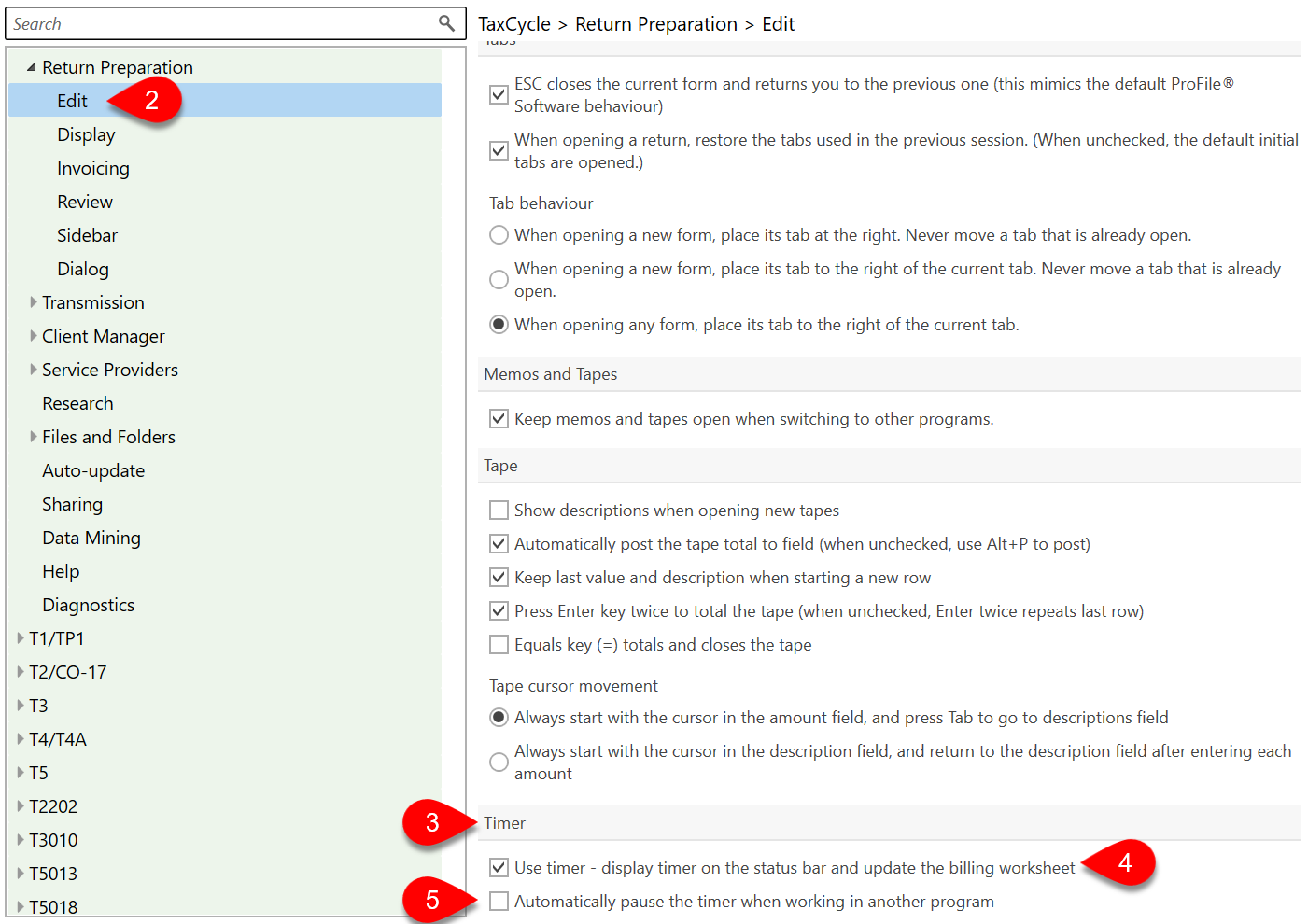
  2. On the left, expand Return Preparation and click on Edit.
  3. On the right, scroll to the bottom to find the Timer section.
  4. Uncheck Use timer to hide the timer at the bottom of the TaxCycle window and stop the time from being added to the Billing Worksheet. TaxCycle still keeps track of the edit time for the file, so you will still see it in the file information. If you hide the timer for a while and then show it again, TaxCycle will still have the edit time from the period in which the option was off.
  5. Check Automatically pause the timer when working in another program to pause the timer if you move to work on another program. This allows you to limit the time tracked to only the time you work on the TaxCycle file. Leave this unchecked if you want to track the time you use in other programs, like email or working papers software. 
  6. To associate the time with an hourly amount, set your Price Options.

Screen Capture: Set timer options