T3010 Registered Charity Information Return
TaxCycle T3010 is certified by the CRA for online filing of the registered charity information return by generating a text file (.txt) you can upload to the CRA's My Business Account or Represent a Client portal.
Please note the following:
- You need a CRA account to use the online service. You can register for a CRA account if you do not have one already.
- TaxCycle only supports online filing for charities with a fiscal period ending on or after December 31, 2023 (CRA version 24).
- Charities with a fiscal period ending before December 31, 2023, must file the T3010 by paper.
- You must file the T3010 return no later than six months after the end of the charity’s fiscal period. See the CRA page When to file to learn more.
For a list of the forms included in this module, see the TaxCycle T3010 product page.
Create a T3010 Return
The T3010 module supports the preparation of multiple years of returns. You can carry forward returns from the prior year TaxCycle file, or from other tax software. See the Carry Forward Prior-Year Returns help topic.
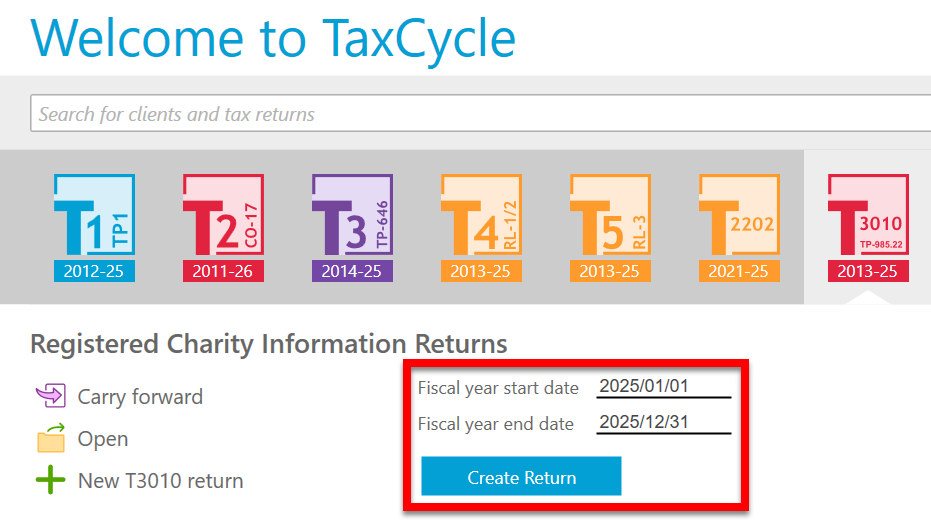
- In TaxCycle, open or create a new T3010 return. If you create a new return, you’ll be asked to enter the fiscal year start date and end date on the Start screen.
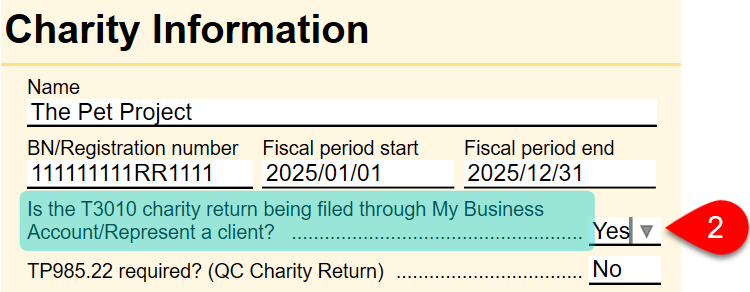
- On the Info worksheet, answer Yes to the question Is the T3010 charity return being filed through My Business Account/Represent a client?. Answering yes makes certain fields on the Info worksheet and T3010 jacket mandatory.
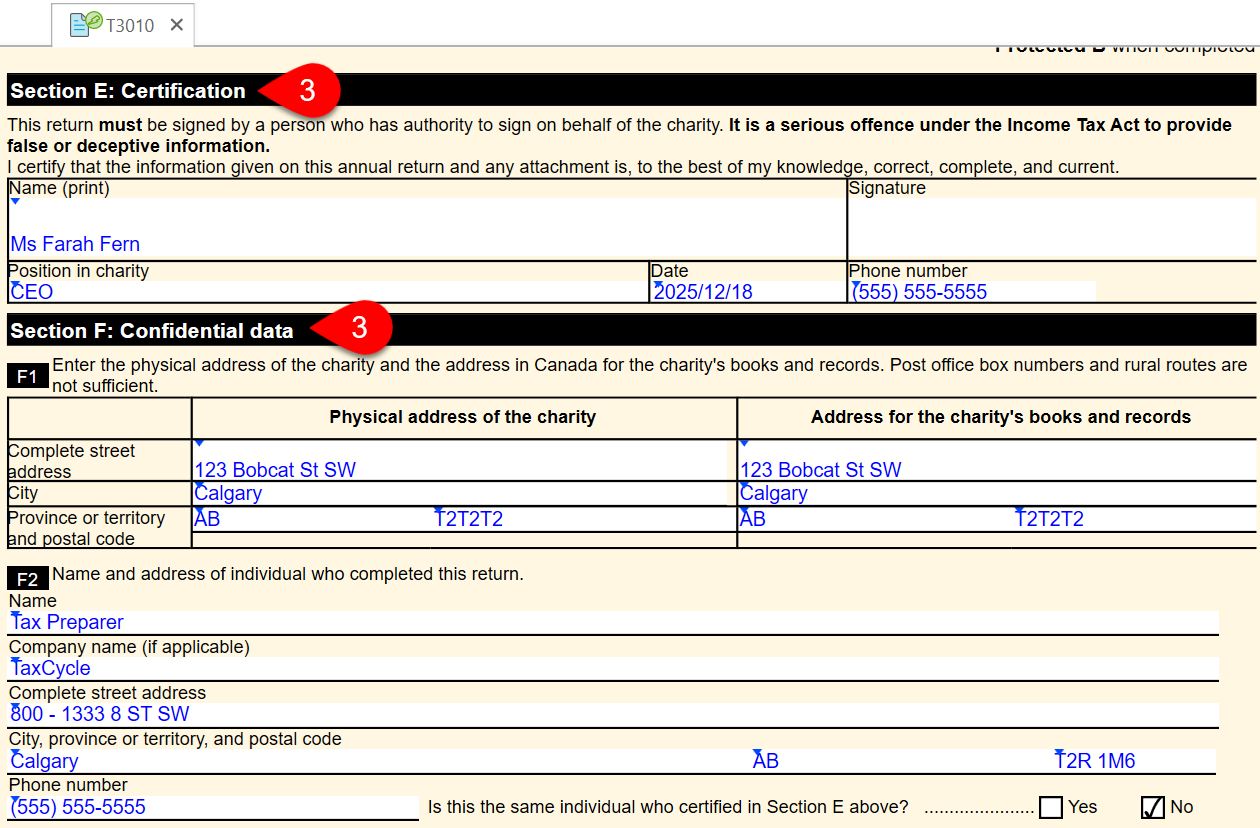
- Review and make sure the contact information in Section E and Section F of the T3010 jacket is correct.
- Prepare any other forms and schedules as applicable. TaxCycle generates a text file (.txt) that includes information reported on the T1235, T1236, T1441 and T2081.
Resolve Outstanding Errors
To resolve outstanding errors before generating the file:
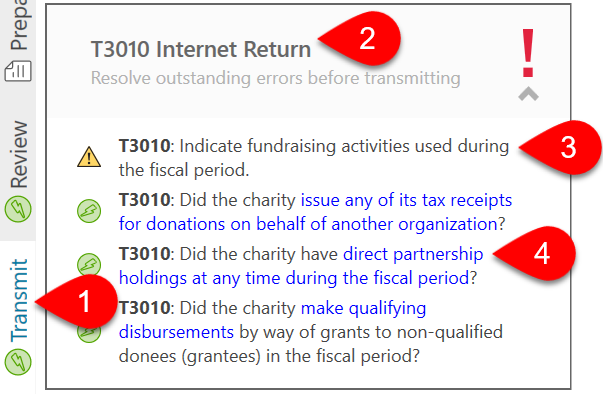
- Click Transmit in the sidebar or press F12.
- Click once on the T3010 Internet Return box to expand it and see a list of all outstanding errors. TaxCycle checks for errors that prevent filing and lists them in this box.
- Double-click on a message to jump to the related field or form.
- In any message, click the blue links to go to the form, field, or message that needs attention.
Ready to Build File
After resolving the outstanding errors, TaxCycle is ready to build the file.
- Click Transmit in the sidebar or press F12.
- Click once on the T3010 Internet Return box to expand it.
- Click the Build file for upload now! link to begin generating the file.
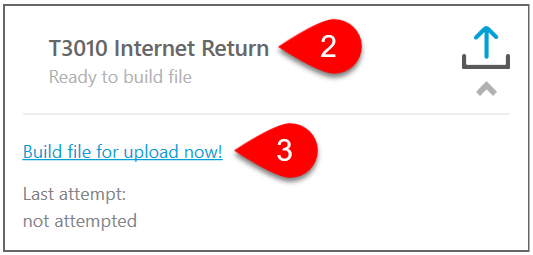
- Save the text file (.txt) file to your computer. Remember this location, as you’ll need to select this file for upload during the final submission step on the CRA website.
File Build Results
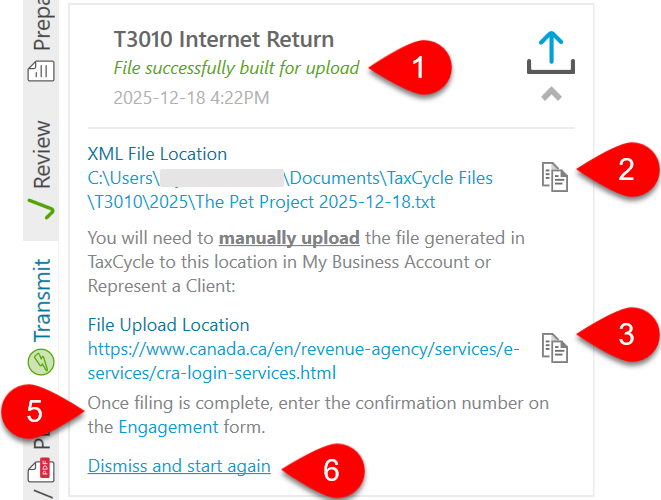
- When TaxCycle successfully builds the file, you will see the words File successfully built for upload in green text.
- The box also displays a path to your saved text file (.txt). Click the link to open the file, or click the button to copy the file path to your clipboard.
- Under File Upload Location, you will find a link to the CRA sign-in page. Click the link to open the page in your default browser, or click the button to copy the web address to your clipboard if you prefer to paste it manually.
- Sign in to your CRA account, then upload and submit the text file (.txt) through My Business Account or Represent a Client. See How to file online using CRA-certified software to learn more.
- For your records, you may enter any confirmation or submission number received from the CRA into the Confirmation number field on the Engagement worksheet.
- If, for any reason, you need to regenerate the file, click Dismiss results and start again.
Print the T3010 for Signature and Filing
If you are filing a return with a fiscal period ending before December 31, 2023, or if you simply wish to file by paper, you must print, obtain a signature and file the return by mail with the CRA. You can also file the return online through the CRA’s My Business Account service. To learn more, see the CRA page Filing a Registered Charity Information Return (T3010).
- Click on the Print/PDF sidebar or press Ctrl+P.
- Print the T3010 CRA Copy print set.
- Have your client sign the appropriate sections on the T3010 jacket.
- Mail the paper copy to the CRA.

Note: Continue to paper-file amended T3010 returns by completing the T1240, which is not part of the new online .txt file.